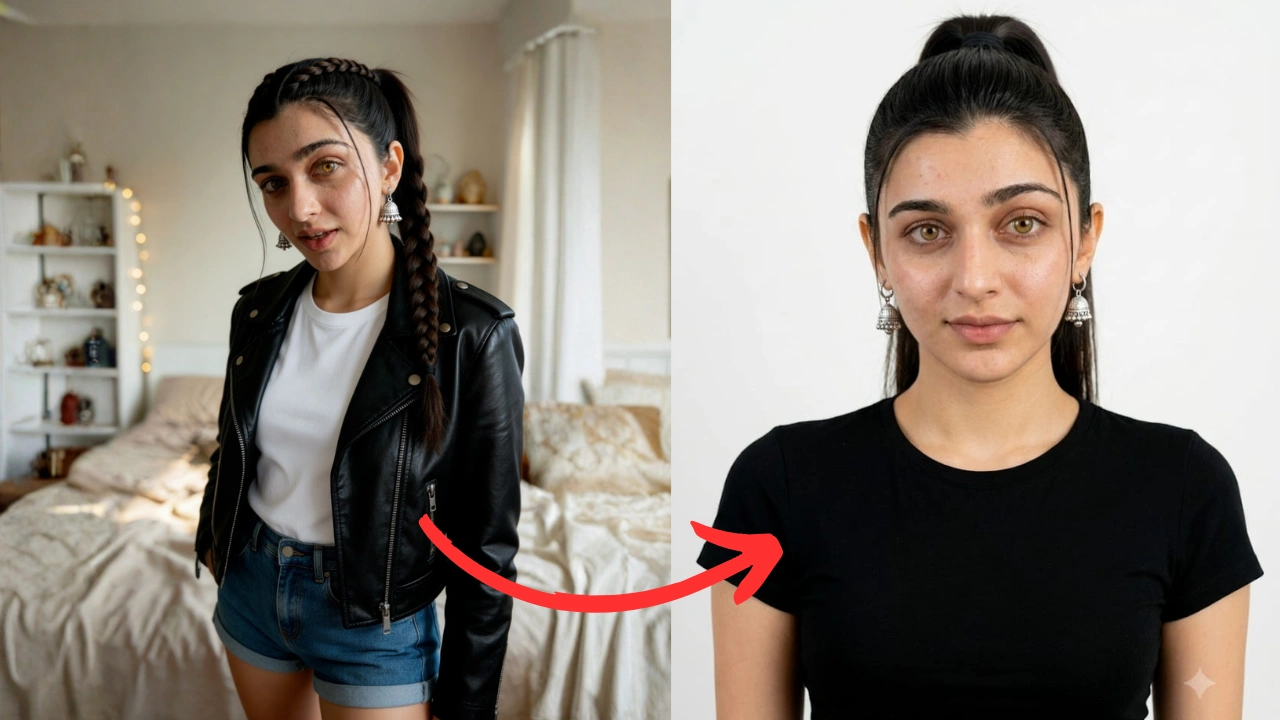
Creating a passport-size photo is now easier with AI photo-editing tools. You can upload a clear photograph, enter the correct prompt, and generate a professional passport-style image within minutes. Follow the steps below to get a clean and properly formatted result.
Step 1: Choose a Clear Photograph
Select a recent photo in which:
- Your face is clearly visible.
- You are looking directly at the camera.
- Your head is not tilted.
- The image is not blurred or pixelated.
- Your face is not covered by hair, glasses, or accessories.
- The lighting is clear and balanced.
A front-facing photograph usually produces the best result.
Step 2: Upload Your Photo
Open an AI image-editing tool that supports photo uploads. Click the upload button and select the photograph you want to convert.
Make sure you upload your own photo and avoid using heavily filtered or edited images.
Step 3: Copy and Use This AI Prompt
After uploading your photograph, copy and paste the following prompt into the instruction box:
Convert the uploaded photo into a professional passport-size photograph without changing the person’s face or identity. Preserve the exact facial structure, face shape, eyes, eyebrows, nose, lips, ears, jawline, skin tone, hairstyle, hairline, and all natural facial details from the original image. Do not reconstruct, beautify, reshape, enhance, or regenerate the face. Only replace the background with a clean, plain white background and adjust the crop to passport-photo framing. Keep the person facing directly towards the camera with the original natural expression. Apply only soft, balanced lighting and basic colour correction. Do not add makeup, skin smoothing, filters, facial symmetry correction, age changes, or artificial retouching. Keep the head centred, leave appropriate space above it, and show both shoulders. Produce a sharp, realistic, high-resolution image in 35 mm × 45 mm format at 300 DPI. Do not add text, borders, logos, watermarks, glasses, hats, jewellery, or other accessories. Most important instruction: The face must remain 100% identical to the uploaded photo. Edit only the background, lighting, cropping, and image size.
Step 4: Generate the Photograph
Click the Generate, Create, or Apply Changes button, depending on the tool you are using. The AI will process the uploaded image according to the instructions in the prompt.
Carefully check the generated result before using it.
Step 5: Check the Face and Background
Make sure the AI has not changed your identity. Compare the generated photo with the original and verify that:
- Your facial features remain unchanged.
- Your skin tone looks natural.
- The background is plain and distraction-free.
- Your entire face is clearly visible.
- There are no strong shadows.
- Your head and shoulders are correctly positioned.
- The image does not contain text or watermarks.
If the AI changes your face, generate the image again and add this instruction:
Preserve the person’s exact identity. Do not beautify, reshape, reconstruct, or modify any facial features.
Step 6: Resize the Image Correctly
The required passport-photo dimensions can vary depending on the country and application type. A commonly used size is:
| Requirement | Recommended Setting |
|---|---|
| Photo size | 35 mm × 45 mm |
| Resolution | 300 DPI |
| Background | Plain white |
| Position | Front-facing |
| Expression | Neutral |
| Image quality | Clear and high-resolution |
| Format | JPEG or PNG |
Before printing or submitting the image, check the official requirements of the passport, visa, job application, examination form, or government service for which the photo will be used.
Can You Change Clothes Using the Prompt?
If the photo is required for a resume, employee profile, or another non-government purpose, you may add the following line:
Replace the existing clothing with a professional dark blazer and a plain light-coloured shirt while keeping the result natural and realistic.
However, for an official passport or visa application, it is safer to use the clothing that was actually worn when the original photograph was taken. AI-generated clothing or facial edits may not be accepted by the concerned authority.
Important Note
An AI-generated passport-style image may look professional, but official authorities can reject digitally altered photographs. Always review the latest photo requirements published by the relevant passport office, embassy, visa centre, or government department. For official documents, avoid changing your face, hairstyle, expression, clothing, or other identity-related details.